
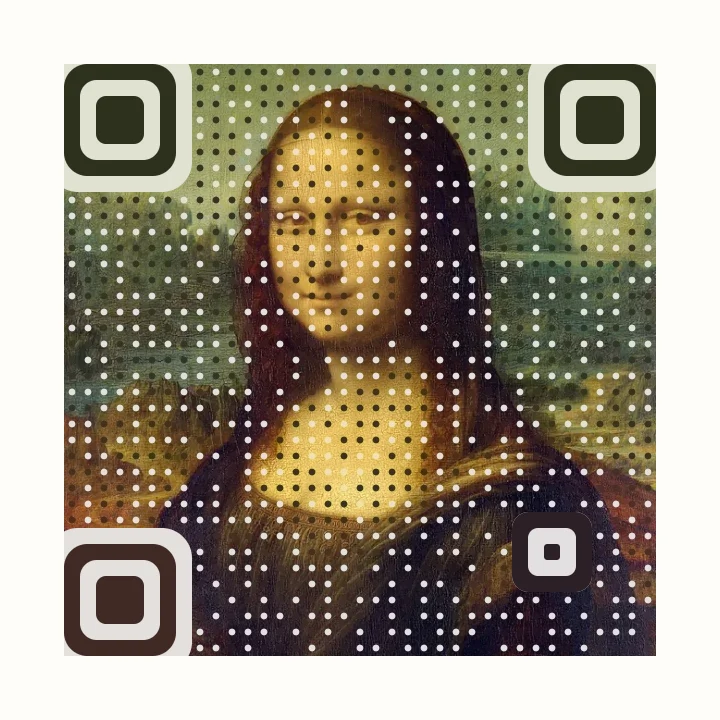
Keep what it does, change how it looks
Maybe the code on your menu, flyer or business card came from another site, and you'd like one with your photo or logo instead. You don't need to work out what's inside it: ScanPix reads the old code and fills in the same content for you.
The old code isn't touched. Both codes hold the same content, so the ones already printed keep working while you replace them.
How to convert a QR code
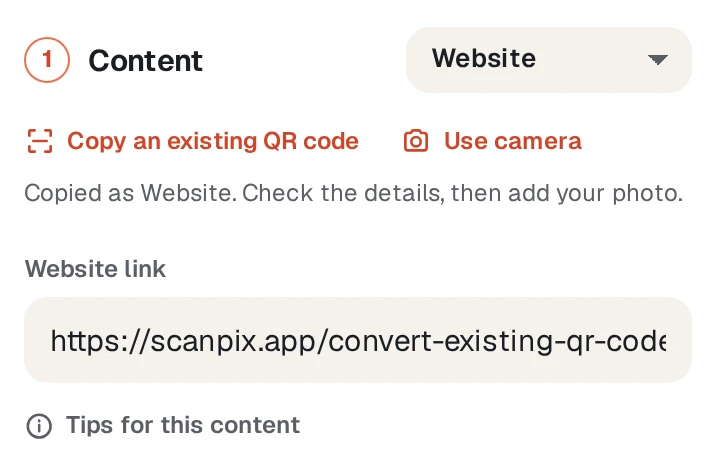
- Open the editor, and under Content choose Use camera. Point your camera at the code; it's read as soon as it's in view.
- Or, if the code is in an email, a PDF or on a website, take a screenshot and choose Copy an existing QR code to pick it.
- Check what was filled in: the link, the Wi-Fi network or the contact details.
- Add your photo or logo, and pick a style.
- When the scan badge says Strong or Good, download the PNG or SVG.
What it can copy
- Links, including menus, reviews, forms, social profiles and payment links.
- Wi-Fi: the network name, password and security type.
- Contact cards: name, company, phone, email, website and address.
- Email, text message, phone, WhatsApp, map location and calendar event codes.
- Everything else, copied exactly as it is. If a contact card has a job title, or an event has a time zone, the form has no field for it, so the code's exact text is copied instead. Phones read it the same way.
Check for a redirect first
Many QR sites make codes that hold a short link on their own domain, not your address. That link forwards each scan to your page, but only while your plan or trial lasts. Copy one of those codes and you copy the redirect too, so the new code would stop working on the same day as the old one.
- Scan the old code with your phone's camera and read the link preview before you tap it.
- If it shows your own website, you're set: copy the code as it is.
- If it shows a short link on another domain, open it, note the page it lands on, and put that address in the Website field after copying.
The new code then goes straight to your page, with nothing in between to expire. Why some QR codes stop working.
Getting a clean read
- Screenshots read best. If the code is in an email, a PDF or a website, screenshot it.
- With the camera or a photo, hold the phone straight in front of the code, in good light, with the whole code and a little margin in view.
- Several codes in one picture? Crop it to the one you want.
Read on your device
The code is read by your own browser. The camera view or the picture of it, the photo you add and the finished code never leave your device, nothing from the camera is recorded, and the new code is static: nobody counts or logs the scans.
FAQ
Can I add a photo or logo to a QR code I already have?
Not to the printed pattern itself, but you can make a new code with the same content and your photo or logo. In ScanPix, choose Use camera and point it at the old code (or Copy an existing QR code to pick a screenshot of it), then add your picture. The new code opens the same thing.
Will my old printed code stop working?
No. Copying only reads the old code; nothing about it changes. Both codes hold the same content and keep working side by side, so you can replace prints at your own pace.
Does it work with Wi-Fi, contact card and other codes?
Yes. Links, Wi-Fi, contact cards, email, text messages, phone numbers, map locations, calendar events, WhatsApp, payment links and more are filled into the matching form. Anything the form can't hold exactly is copied as the code's exact text, which phones read the same way.
Why does it say no QR code was found?
The picture is too small, blurry or angled for the code to be read. A screenshot works best. For a photo, or with Use camera, hold the phone straight in front of the code, with the whole code and a little margin in view, in good light. If the picture has several codes, crop it to the one you want.
Is my picture uploaded?
No. The code is read by your own browser, and the picture or camera view never leaves your device. The same goes for the photo you add and the finished code.