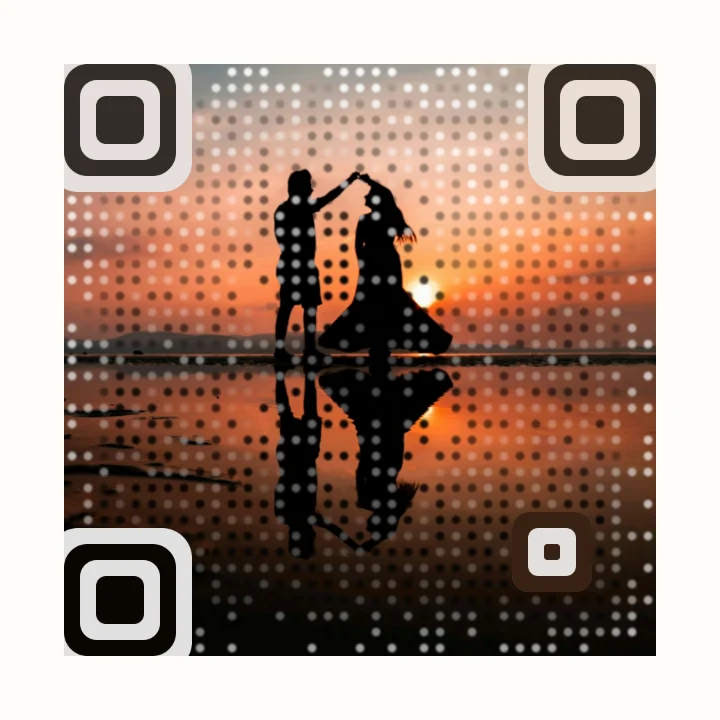
A code that matches the invitation
Plain black squares look out of place on letterpress or watercolor stationery. A code made from your engagement photo looks like part of the design, and guests can tell at a glance what it's for.
Guests also keep save-the-dates on the fridge for months, so the code has to keep working until the wedding and after it. ScanPix codes hold your link directly, so they never expire.
How to make it
- Open the editor and paste your wedding website or RSVP link.
- Add your engagement photo. It stays on your device and is never uploaded.
- Choose "Photo behind code" with the Soft look, or "Photo in center" if the photo has faces you want shown clearly.
- Check that the scan badge says Strong or Good, test-scan with two phones, and download SVG for your printer or a 2048 px PNG for a home print.
Recommended settings
| Layout | Photo behind code with the Soft look, or Photo in center for close-up faces |
|---|---|
| Style | Classic, which keeps the photo's own colors |
| Dots and corners | Circle dots at about 50% size, rounded corners. Raise the dot size if the photo has large dark areas |
| Photo | Even light, without large pure-white or pure-black areas |
| Download | SVG for a printer, PNG 2048 px for home printing |
For a cleaner card, use Photo in center with a custom color that matches the invitation's text.
Print tips for invitations and save-the-dates
- Size. As a rule of thumb, at least 1 in (2.5 cm) square on a 5×7 card. 1.25 to 1.5 in (3 to 4 cm) is safer for a code with a photo.
- No foil on the code. Shiny foil or metallic ink can stop phones from reading it. Keep the foil for the names.
- Proof first. Order one printed proof and scan it with a couple of phones before printing the full run.
- A typed fallback. Print the short website address under the code for guests who would rather type it.
On the day
The same editor makes codes for the rest of the wedding: a shared photo album on the tables, the registry on the welcome sign, or a Wi-Fi sign for the reception venue.
FAQ
How do I put a QR code on my wedding invitation?
Make the code in ScanPix with your RSVP or wedding website link and your photo, download it as SVG (best for printers) or a 2048 px PNG, and place it in your invitation design like any other image. Scan a printed proof before you print the full run.
Can I put a photo in a QR code?
Yes. QR codes carry spare error correction, so part of the pattern can show a picture and phones still read it. ScanPix lays the code over your photo or puts the photo in the center, and checks the result with a real decoder as you edit.
Do wedding QR codes expire?
ScanPix codes are static, so they never expire. The link is stored in the code itself. It only stops working if the page it points to goes offline, for example if your wedding website is taken down.
What should a wedding QR code link to?
Your RSVP form or wedding website on invitations and save-the-dates. On the day, a registry, a shared photo album or the reception schedule work well too.
How big should a QR code be on an invitation?
As a rule of thumb, at least 1 in (2.5 cm) square on a 5×7 card, and 1.25 to 1.5 in (3 to 4 cm) for a code with a photo. Scan a printed proof to be sure.