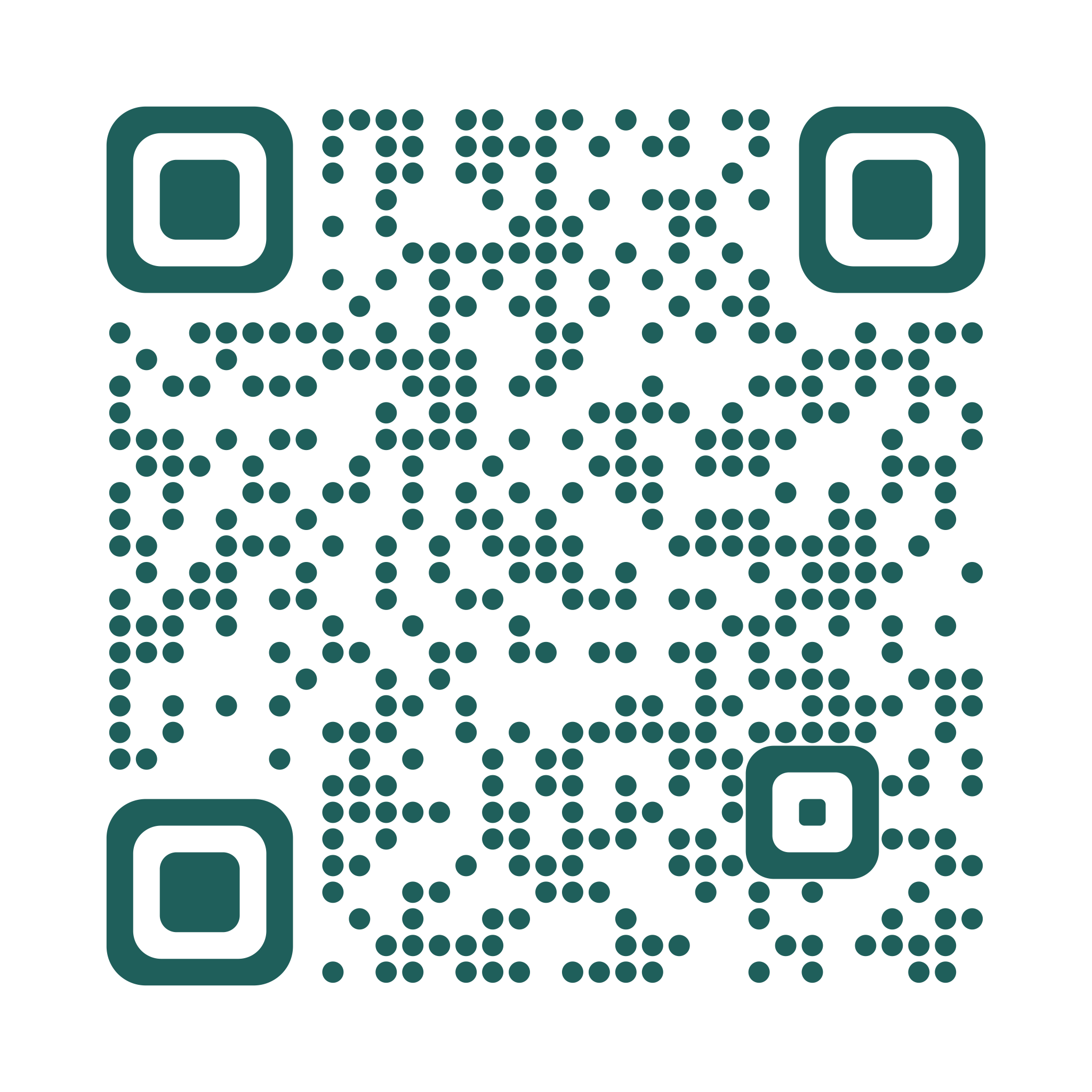
"What's the Wi-Fi password?"
It is the question every host, café and household answers again and again. Long passwords get mistyped, and the router sticker is behind the TV.
A Wi-Fi QR code holds the network name, the password and the security type. Guests point their camera at it, tap once, and they're online.
Why it matters that this runs in your browser
An online generator that builds the code on its server receives your Wi-Fi password to do it. ScanPix builds the code on your own device, so your password is never sent anywhere. You can even make it with the network turned off once the page has loaded.
Wi-Fi codes are always static: the details sit in the pattern itself, with no link in between. The code never expires. If you change the password, make a new one.
How to make it
- Open the editor with Wi-Fi selected, and enter your network name, password and security type. Tick "Hidden network" if your network doesn't broadcast its name.
- Keep the one-color code, or switch to "Photo in center" and add a photo of the room or your logo.
- Turn on "Add a caption under the code". It prints the network name and password underneath, for older phones and anyone who prefers to type.
- Check that the scan badge says Strong or Good, download a PNG at 2048 px, then print it or put it in a frame.
Recommended settings
| Layout | No photo for the cleanest sign, or Photo in center for a logo or house photo |
|---|---|
| Colors | A dark color that suits the room, such as deep teal or navy, on white or cream paper |
| Dots and corners | Circle dots, rounded corners |
| Caption | On: "Wi-Fi: name · Password: …" |
| Download | PNG 2048 px for home printing, SVG for a print shop |
Print and placement tips
- Size. As a rule of thumb, print the code at least 2 in (5 cm) square for a counter or nightstand, and larger for a wall sign people scan from further away. Test from where guests will stand.
- Placement. At eye level near the entrance, on the kitchen counter, or on the first page of the welcome binder.
- Use a guest network. Anyone who photographs the code can join, so share a guest network rather than your main one, and keep the sign out of view from windows.
- Matte paper. Glossy prints and glass frames can reflect light into the camera. If it struggles to scan, tilt it or use matte paper.
FAQ
How do I create a QR code for my Wi-Fi?
Open the ScanPix editor, choose Wi-Fi, and enter your network name, password and security type. Add a photo or logo if you like, turn on the caption, check that the scan badge says Strong or Good, and download a PNG or SVG to print.
Is it safe to share Wi-Fi with a QR code?
The code holds your password in plain form, so anyone who scans or photographs it can join. Share a guest network rather than your main one, and put the sign where only guests can see it. With ScanPix the password is never sent to a server while you make the code.
Do Wi-Fi QR codes work on iPhone and Android?
Current iPhone and Android cameras recognize Wi-Fi codes and offer to join the network. Older phones may need a scanner app, which is why printing the network name and password under the code helps. Test with both kinds of phone before you print.
What happens if I change my Wi-Fi password?
The old code stops letting people join, because it holds the old password. Make a new code with the new password and reprint the sign. It takes a minute and costs nothing.
Where should I put a Wi-Fi QR code in an Airbnb?
Somewhere guests look in the first few minutes: by the entrance, on the kitchen counter, on a nightstand, or on the first page of the welcome binder. Keep it inside, out of view from windows and doors.