From blank sign to scannable sign
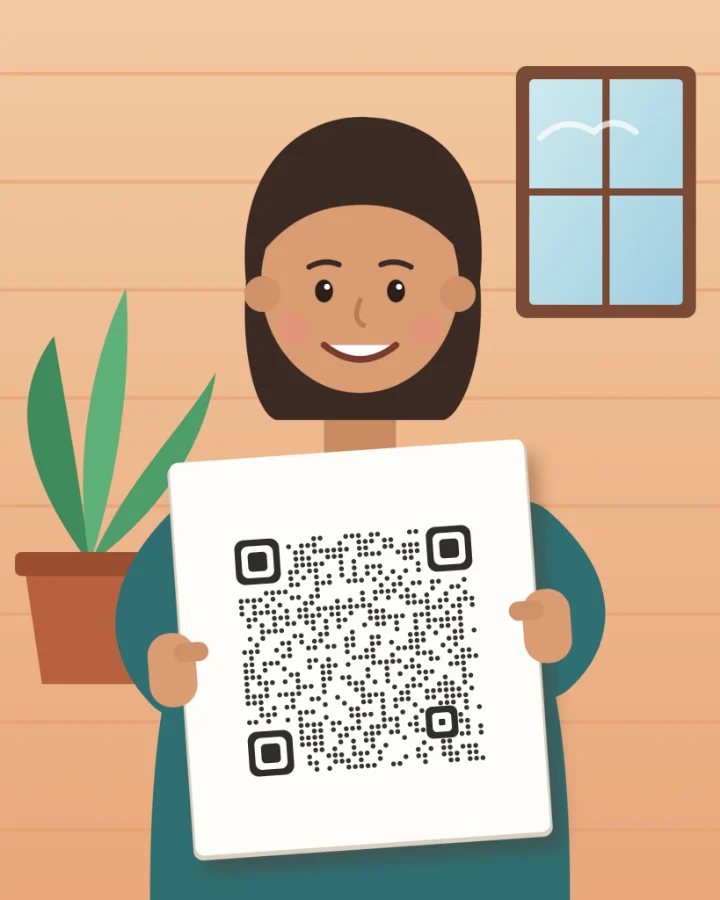
With "Photo behind code", the photo is cropped to a square and the code covers it. With "QR on photo", your picture keeps its own shape and the code becomes an object on it. Put it on a sign someone is holding, a card on a table, a poster on a wall or a bubble in a drawing, at the size and angle that fits.

How it works
- Type your link, then choose "QR on photo" under Layout.
- Add your photo. The code starts in the middle.
- Drag the code onto the spot you want, such as the sign.
- Drag a corner handle to resize it, or the round handle on top to turn it. It snaps upright and to quarter turns; hold Shift to turn in 15° steps.
- Check that the scan badge says Strong or Good, then download. The PNG and SVG are the whole picture, in its own shape.
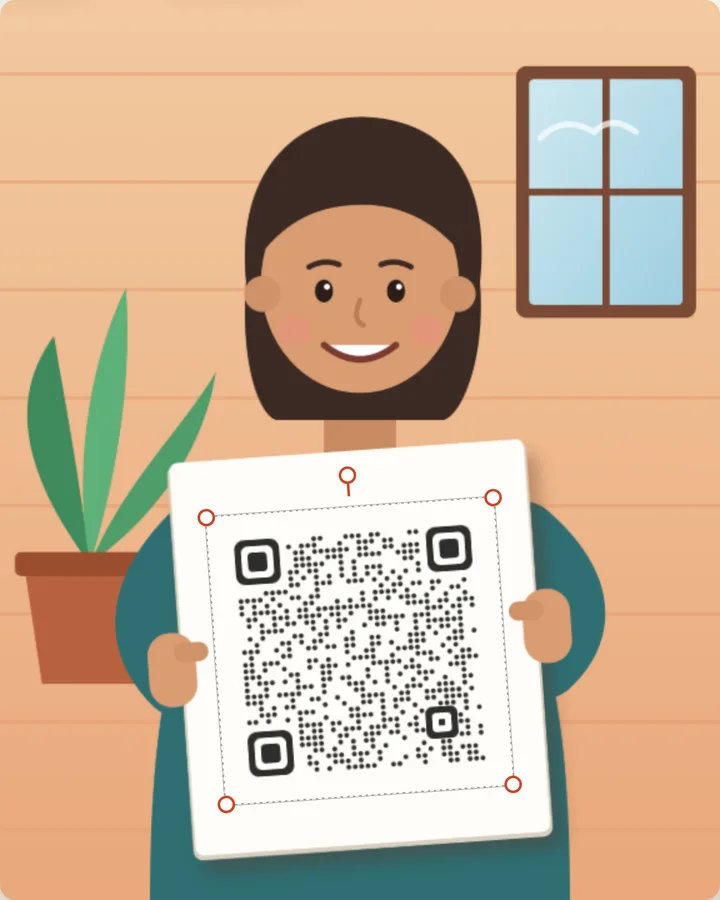
Prefer the keyboard? Click the preview, then use the arrow keys to move the code, + and − to resize it, and [ and ] to turn it. The layout settings also have Size and Rotation sliders, and a "Center it" button to start over.
Ideas
- A held sign. Take a photo of someone holding a blank card, then put the code on it for a welcome board, a fundraiser or a "follow us" post.
- Greeting cards. Put the code in a speech or thought bubble of your own drawing, linking to a video message.
- Posters and windows. Place the code on a poster or shop window in a photo of your venue, so the picture shows where to scan.
- Characters and mascots. Put the code on your own mascot's tummy, shirt or badge, with the photo around it.
- Products. Place the code on a box, label or tag in a product photo for packaging mock-ups.
Use photos and drawings you own or have permission to use. Other people's logos and characters stay theirs, even with a code on top.
How much room around the code
Scanners look for a quiet border around a code, and the standard is four squares wide. In QR on photo you can choose a slimmer margin in the layout settings: Standard, Slim, Thin or None.
- Busy backgrounds such as leaves, faces or patterns need a margin. Keep Standard or Slim.
- Plain, light spots such as a white sign or a pale wall already act as the margin, so None can look cleaner there.
- Whatever you choose, the scan badge checks the whole picture, so you'll see if a margin is too thin.
Add a call to action
Under Frame, pick a Border, a Label or a Bubble with your own words, such as "Scan for the menu". Choose whether the frame goes around the code or around the whole picture. Around the code, a Border or Label turns with it, and a Bubble stays upright: drag it anywhere on the picture, or resize it from its corner, and its pointer follows the code.
Recommended settings
| Layout | QR on photo |
|---|---|
| Style | Classic with dots at 75%, or Logo to match the code's colors to your photo |
| Size | At least a quarter of the picture's short side, so the code stays scannable when the picture is shared small |
| Margin | Standard on busy spots, None on plain light ones |
| Download | PNG for sharing and printing, SVG for print shops |
Tips for a good result
- Shoot the sign face on. The code is placed flat and can be turned, but it isn't bent to match perspective, so a sign photographed straight on looks most natural.
- Leave a light, plain area. A blank card, a pale wall or a clear patch of sky gives the code the contrast it needs.
- Turn it as much as you like. Phone cameras read codes at any angle, so a tilted code on a tilted sign still scans.
- Test the real thing. Scan the printed picture or the post on another phone's screen before you share it widely.
More ways to use a photo
To fill the whole code with your photo instead, see the wedding QR code and memorial QR code guides. For a code in the middle of your own design, try the restaurant menu guide.
FAQ
Can I put a QR code on top of my own photo?
Yes. Choose "QR on photo" under Layout, add your photo, and drag the code where you want it. You can resize and rotate it, and the download is the whole picture with the code on it.
Will a rotated QR code still scan?
Yes. Phone cameras read QR codes at any angle. The scan badge checks the finished picture, rotation included, so you'll know before you download.
Does the QR code need a white border around it?
Scanners expect a quiet border, and the standard is four squares wide. On a plain, light spot the photo itself can act as that border, so a slimmer margin or none can work. On busy backgrounds keep a margin. The scan badge tells you if it's too thin.
Can the code match the angle of a sign in the photo?
The code can be turned to any angle, but it stays flat: it isn't bent to match perspective. Photos taken straight on look the most natural.
Is my photo uploaded anywhere?
No. ScanPix makes the code in your browser, and the photo never leaves your device.
Does the code stop working after a while?
No. The link is stored in the code itself, with no redirect service in between, so it keeps working as long as the link does.